
Getting Started with the Linkedin Campaign Manager
Meet Juliana. She has recently joined a company with the name of FixDex.
Her first task is to create a Linkedin advertising campaign that actually works to bring and increase brand awareness for the company’s new product.
THroughout this guide, Juliana will be used as an example to demonstrate how to set up and manage a campaign in Linkedin ads manager.
What is Linkedin Campaign Manager?
Campaign manager is Linkedin’s advertising platform that allows advertisers to:
- Create ad campaigns.
- Launch ad campaigns.
- Monitor campaign performance.
- Analyze and optimize results.
In simple language, Linkedin Campaign Manager is the central dashboard for managing all the Linkedin advertising activities.
Before you can create an ad campaign,
To use Linkedin Campaign Manager, you need:
- A Linkedin account : It serves as the account where your campaigns, billing and reporting are managted.
- Appropriate permissions : You must have the correct role assigned within campaign manager.
Roles that can create and edit campaigns.
The following roles can create and edit ad campaigns.
- Campaign manager
- Accound manager
- Billing admin.
Yes, a billing admin can also create and edit a linkedin ad campaign.
At a minimum, you need the campaign manager role to build and manage Linkedin campaigns.
To learn how to create an account and campaign manager roles and permissions, see introduction to linkedin ads.
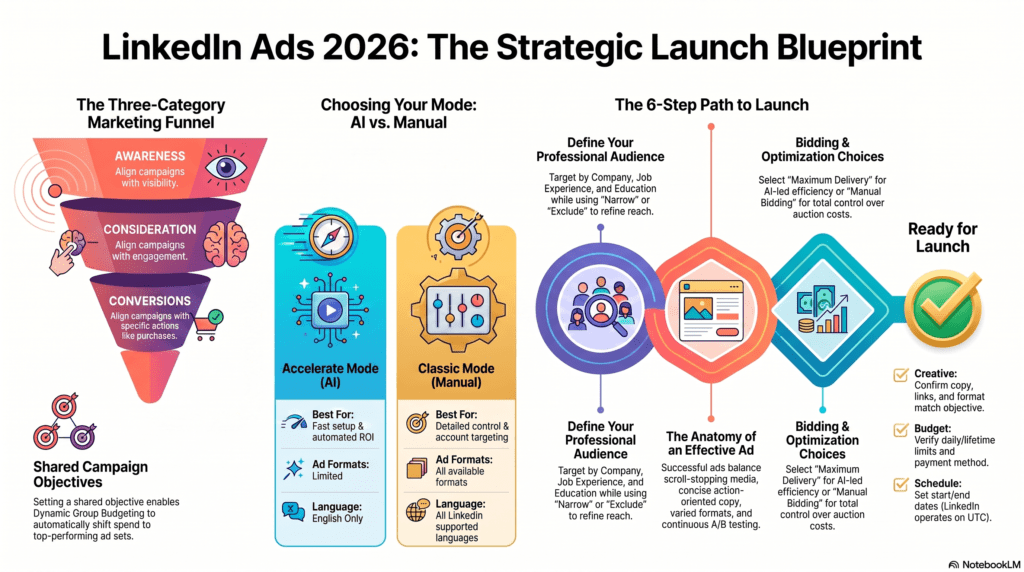
Campaign Objectives
When creating a campaign, the first step is to choose a Campaign objective.
Campaign setup process.
- Choose a campaign objective.
- Enter Campaign Details.
- Create the ad.
- Launch the campaign.
Why choose an objective?
Juliana’s first task is to select the objective for her ad campaign.
The objective here determines the action she wants people to take after seeing the ad.
Choosing the right objective helps Linkedin optimize the campaign toward the desired result.
Linkedin’s Three Objective Categories.
Linkedin groups campaign objectives into 3 main categories based on the business outcome you want to achieve with Linkedin advertising.
- Awareness. Outcome of awareness campaigns is simply an increase in visibility of the brand and share of voice.
- Use awareness campaigns when your goal is to:
- Reach more people.
- Increase brand recognition.
- Improve brand visibility in the market.
- Use awareness campaigns when your goal is to:
- Consideration. Outcome of consideration campaigns is to generate deeper engagement and build relationships with the help of website visits, social engagement and video views.
- Use consideration campaigns when you want people to:
- Engage with your content.
- Learn more about your business.
- Develop interest in your products or services.
- Use consideration campaigns when you want people to:
3. Conversions: Outcome of conversion based campaigns is to drive meaningful actions that move people closer to a decision.
Use conversion campaigns when you want users to take significant next steps like:
- Making a purchase.
- Applying for a job
- Registering for an event.
- Lead generation.
- website conversions
Linkedin's Recommendation : Full-Funnel Marketing
This means an advertiser should balance his advertising strategy across all 3 objectives.
Instead of focusing only on one stage of the marketing funnel, use campaigns at each stage to guide prospects from discovery to action.
Accelerate and Classic modes.
When selecting a campaign objective in Linkedin Campaign Manager, you may notice some options are marked with a blue sparkle icon. Below image is courtsey of Linkedin marketing academy.
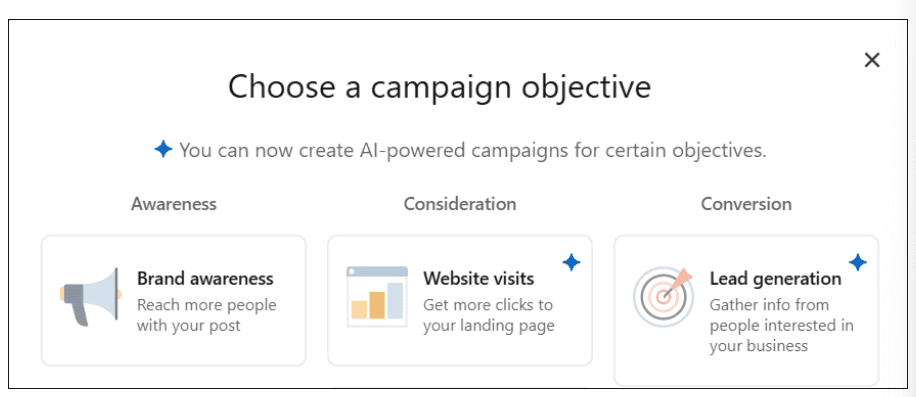
This tells that the campaign objective supports Artificial Intelligence (AI) features through Accelerate Mode, which can automate and optimize parts of your campaign setup.
Note : Available options may change as Campaign Manager continues to evolve.
Accelerate mode vs. classic mode.
Campaign manager offers two ways to create campaigns:
Accelerate mode
What it does:
Uses AI to automate campaign setup and optimization.
Helps maximize campaign performance while reducing manual work.
Saves time so a marketer can focus more on strategy and creative development.
How it all works?
You can start simply by providing the URL of the product, service or page you want to advertise.
The system then helps automate campaign creation and ongoing optimization.
Best for:
Faster campaign setup.
Marketers who want AI-assisted optimization.
Popular campaign objectives and ad formats.
Classic mode
Classic mode gives you full manual control conver campaign creation.
Provides access to all advanced campaign settings.
Best for:
Advertisers who want detailed control.
Advanced campaign configurations.
Access to every campaign objective and ad format available in Linkedin Campaign Manager.
Which mode should you choose?
If accelerate mode is available for your selected objective:
The ad campaign will automatically default to accelerate mode.
You will still have the option to switch to classic mode.
Accelerate mode is available for selected popular objectives and ad formats only.
Create an Ad Campaign : Overview
- Choose a Campaign Objective.
- Input Campaign Details.
- Create Ad
- Launch Campaign.
You will now be ready to start inputting the details of your ad campaign.
Below are the 6 steps of Linkedin Campaign Creation.
- Create or select a campaign.
- Define the target audience.
- Choose the ad format that best fits the objective.
- Select the required ad placement.
- Set a budget and optimize bids.
- Check the forecasted results of the campaign.
Let’s see now how campaigns are structured.
Campaign Hierarchy
An ad set is a group of creatives that share the same key settings like,
- Marketing objective
- Targeting audience
- Ad format
Campaigns are used to organize related ad sets and manage them more efficiently at scale.
What can Linkedin ad campaigns do?
Campaigns allow you to:
- set a shared objective for all ad sets within the campaign.
- set a shared budget and schedule for all ad sets within the campaign.
- manage the campaign’s status
- view or export performance metrics for all ad sets in the campaign.
There is no limit to the number of campaigns you can create, allowing you to organize ad sets however best fits the business needs.
Campaign Hierarchy
The campaign structure follows this hierarchy:
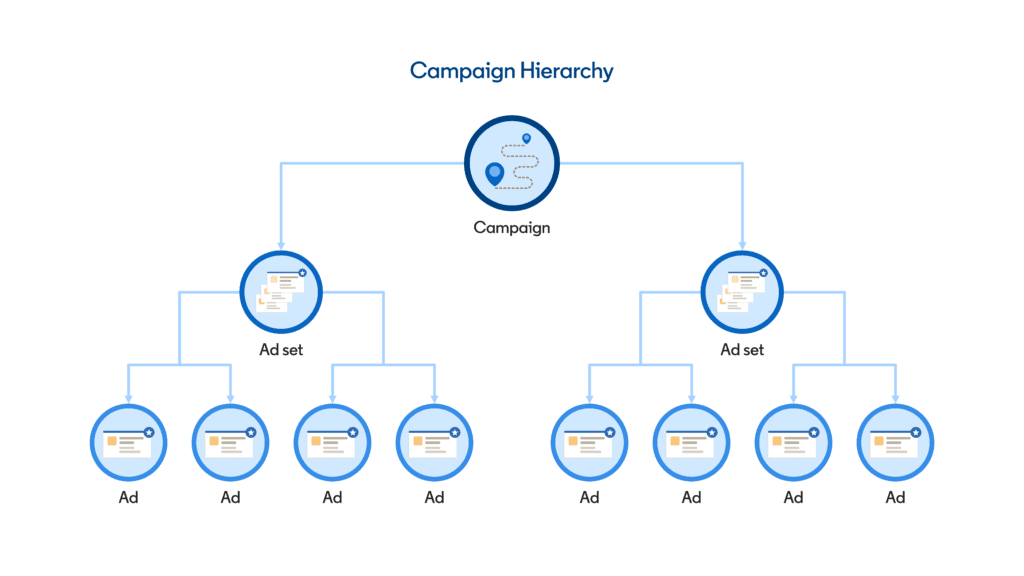
Campaign group that contains multiple campaigns.
Campaign that contains multiple ad sets.
Ad set that contains multiple ad creatives.
This hierarchy helps advertisers organize, manage and report on campaigns more effectively.
Optimize budget with a shared campaign objective.
By default, campaigns are built around a shared objective.
Using a shared objective allows you to enable dynamic group budget, which automatically allocates budget efficiently across ad sets to help achieve your business goals.
Dynamic group budget limits.
When Dynamic Group Budget is ON, a campaign can contain up to 50 ad sets.
When Dynamic Group Budget is OFF, a campaign can contain up to 2,000 ad sets.
Customizing campaign organization
An advertiser is not required to use the default shared-objective structure.
You can choose to organize campaigns around other shared factors like:
- Campaign duration.
- Regional targeting.
- Geographic location.
- Any other common variable that suits your campaign strategy.
This flexibility allows you to structure campaigns according to the specific business and reporting needs.
Create or Select a Campaign
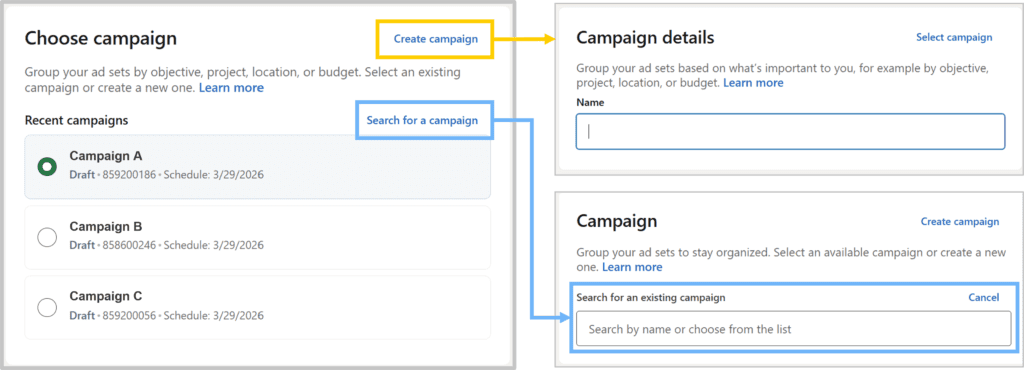
Juliana starts by selecting a campaign for her brand awareness ad campaign.
All new ad accounts will automatically start off with a default campaign called New Campaign.
You can select this default and edit its name as needed.
When creating a new ad set, you will be given the option to manually create a new campaign.
After creating the campaign, you can edit its name and settings at any time.
You can delete the campaign later if you no longer need it, ofcourse!
Alternatively, you can choose an existing campaign by selecting from the list of recent campaigns or using the search function as shown below.
Define Your Target Audience
With Linkedin, An advertiser can target the audience for her ad campaign in a professional, brand-safe environment based on attributes like-
- Company/Employer
- Demographics
- Education
- Job Experience
- And more…
Adjusting audience size
An ideal audience size may vary depending on factors like region, objective, ad format, content etc.
Campaign manager provides recommendations on audience size based on your objective and ad format.
Start by selecting the geographic region(s) and language(s) of your target audience.
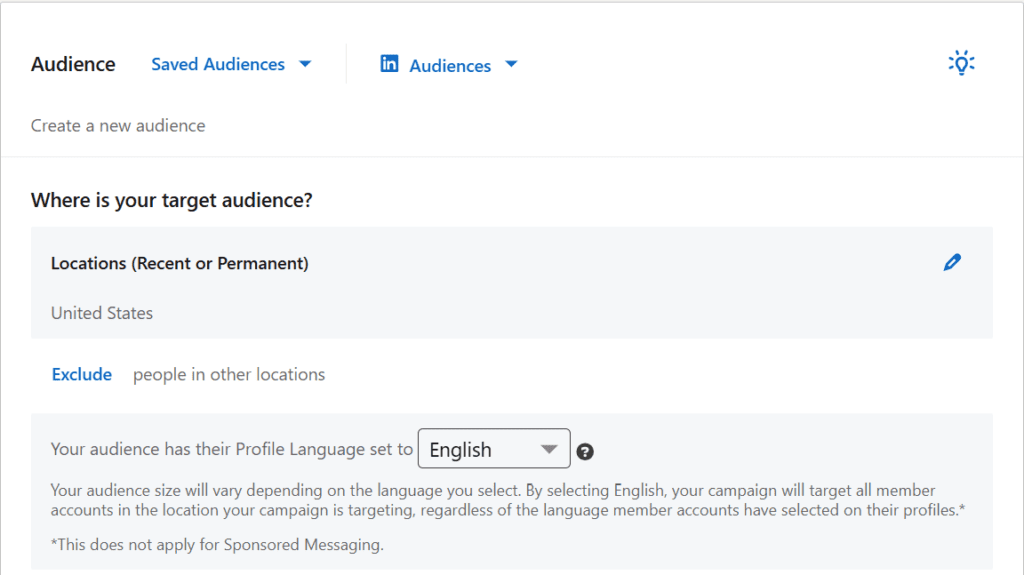
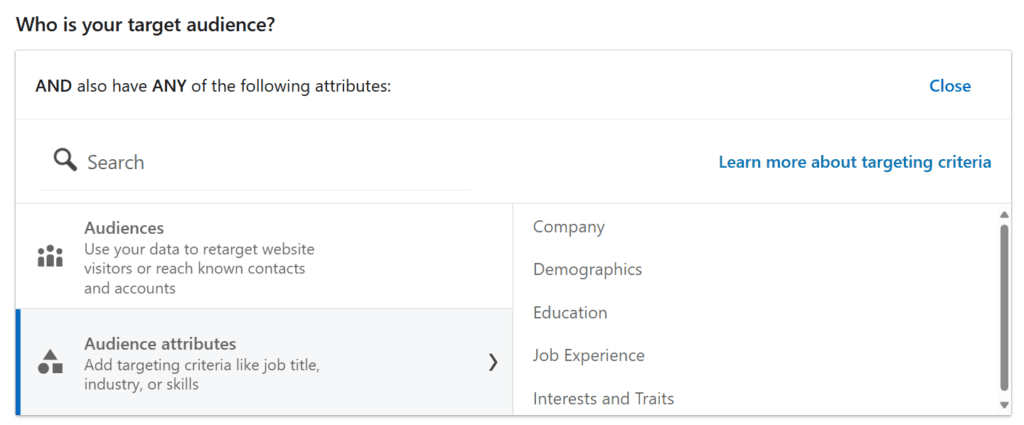
You can then further define your audience using Narrow and Exclude

Use the Narrow feature to refine the target audience by using audience lists uploaded into Campaign Manager or selecting Audience attributes that are most relevant to your audience.
Use the Exlude feature to further filter your target audience.
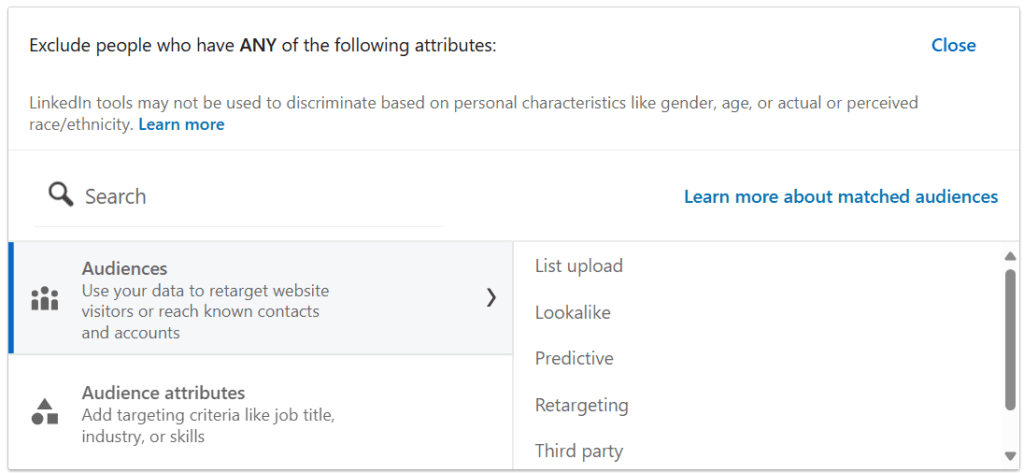
Idea: These selection and exclusion options are NOT used to discriminate based on personal characteristics like gender, age or actual or perceived race/ethnicity. Learn more about Linkedin’s Advertising policies here.
Mix and match audiences and audience attributes to create the ideal audience.
Audience Expansion
In most instances, the Enable Audience Expansion option is checked by default.
Keeping this option enabled helps to find other linkedin members who have attributes similar to the target audience.
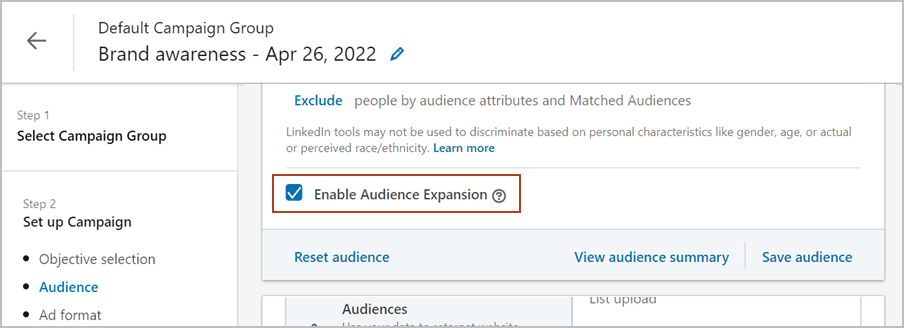
Here is the official link to learn more about audience expansion.
To refine audience targeting techniques, refer ‘Using Linkedin’s Ad Targeting‘ course.
Choose the Ad Format
Linkedin Campaign manager offers several ad formats. An advertiser need to pick the format that best matches his campaign goals.
Not every ad format is available for every campaign objective.
You can use only one ad format per campaign.
Below are the ad formats and the objectives they serve.
- Single Image Ads
- Use one image to grab attention.
- Best for brand awareness, website visits, engagement, lead generation and website conversions.
- Carousel Image Ads
- Use multiple images that users can swipe through.
- Best for: Brand awareness, website visits, engagement, lead generation, and website conversions.
- Video Ads
- Use video content to engage professional audiences.
- Best for: All objectives, including video views.
- Text ads
- Simple, budget-friendly ads with text.
- Best for brand awareness, website visits, and website conversions.
- Spotlight Ads.
- Highlight a product, service or offer.
- Best for : Brand awareness, website visits, and website conversions.
- Follower ads.
- Promote Linkedin Page to gain followers.
- Best For : Brand awareness and engagement.
- Document Ads.
- Share PDFs, guides, presensations as well as reports.
- Best for brand awareness, website visits, engagement, lead generation and website conversions.
- Conversation ads
- Send interactive messages through Linkedin Messaging.
- Best for brand awareness, website visits, engagement, lead generation, and website conversions.
- Event ads
- Promote linkedin events and increase attendance.
- Best for brand awareness, website visits and engagement.
- Article & Newsletter Ads
- Promote long-form content and grow subscribers.
- Best for brand awareness, engagement and lead generation.
So here are the things to ponder:
- video ads works for all objectives.
- budget-friendly option: text ads
- product-focused option : spotlight ads
Important Links
Linkedin’s Ad format course for best practices
Linkedin’s Ads Guide
Select Ad Placement
Ad placement determines where your Linkedin ads will appear.
By default, Linkedin Audience Network (LAN) is enabled (except for Lead Generation campaigns).
Linkedin Audience Network (LAN) extends ads beyond Linkedin to trusted partner websites and apps.
4 Benefits of LAN (Linked Audience Network)
Reach a larger audience.
Show ads across multiple touchpoints.
Advertiser in trusted 3rd-party environments.
Increase campaign reach and visibility.
You can disable LAN if you only want ads to appear on Linkedin.
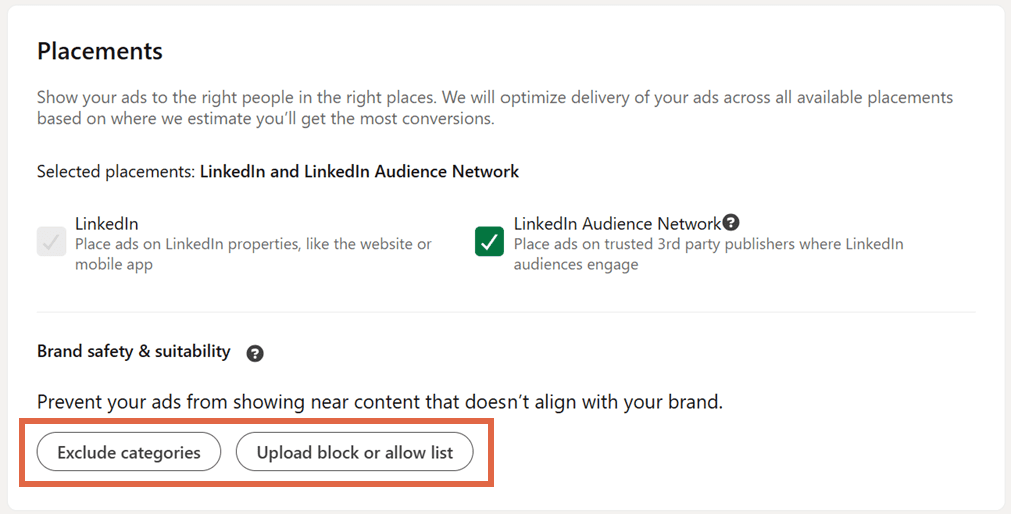
Brand Safety Controls
Use Exclude Categories to prevent ads from appearing in specific app or website categories.
Upload a Block list to specify individual websites or apps where your ads should not be displayed.
So, here are some tips to have.
LAN = Linkedin Audience Network.
Purpose : Expand ad reach beyond Linkedin.
Default Status : ON for most campaigns.
Exception: OFF by deafault for Lead Gen. Campaigns.
Exclude Categories : It means block certain types of websites/apps.
Block List : Block specific websites/apps.
Main benefit: more reach across trusted partner publishers.
Link : How to access the full list of Publishers in Campaign Manager.
Set Budget, Schedule and Bidding (Bid Optimization)
After choosing the campaign objective, audience, ad format, and placement, the next steps are:
- Set the budget.
- Set the campaign schedule
- Choose a bidding strategy
Setting a Budget
Linkedin provides multiple budget options to control campaign spending.
Lifetime Pacing (Applies to all budget types)
Linkedin uses Lifetime pacing to distribute budget throughout the campaign duration.
It automatically:
Predicts platform activity during the campaign.
Optimizes spending over time.
Adjusts budget distribution based on campaign objective, ad format and optimization goal.
Budget Options
1. Dynamic Campaign Budget (Campaign Level)
Optimizes budget across the entire campaign.
Automatically shifts spending to the best-performing ad sets
Uses machine learning (ML) to find the best opportunities.
Important:
You can choose either Daily budget or Lifetime budget
You cannot select both when using dynamic campaign budget.
2. Daily Budget (Ad Set Level)
Set the average amount you want to spend each day.
Linkedin manages daily spending around this target.
3. Lifetime Budget (Ad Set Level)
Set the total amount you want to spend during the entire ad set schedule.
Budget is distributed from the start date to the end date.
4. Daily + Lifetime Budget (Ad set Level)
Set both i.e. average daily budget and total lifetime budget.
There are 3 benefits of doing so:
Controls daily spending.
Maximizes impression opportunities.
Ensures total spend stays within the overall budget.
Setting a schedule
Here you will choose how long your campaign will run.
There are 2 options here.
- Run continously: Campaign keeps running until you manually stop it.
- Set start and end dates : Define a specific campaign duration. Linkedin recommends running campaigns for at least 7 days for better performance and optimization.
Important Note: Linkedin ads operate on UTC . i.e. if you schedule a campaign to start tomorrow at 5 PM. It will launch according to UTC, not necessarily your local time zone.
Setting a Bid
Linkedin uses an auction system to decide 3 things.
1. Which ads are shown.
2. How often they are shown.
3. How much advertisers pay.
Your bidding strategy determines how aggressively you compete in the auction.
Bidding Options
- Maximum Delivery
Goal: Get the maximum number of results from your budget.- Uses machine learning.
- Automatically adjusts bids.
- Spends your full budget efficiently.
- Optimizes toward your selected campaign objective.
- Best for: Maximizing results without manul bid management.
- Cost Cap
Goal: Control average cost per result.- Set a target maximum average cost.
- Linkedin priortizes lower-cost auction opportunities.
- Attempts to keep average costs below your target.
- Best for: Advertisers who want cost control, especially for lead generation campaigns.
- Manual Bidding
- Goal : Full control over the bidding process.
- You set the bid amount yourself.
- Linkedin does not automatically optimize bids.
Important:
Provides the highest level of control.
Can limit campaign performance if bids are too low.
Bid should reflect the value of a click, impression or conversion to your business.
Useful Links
Auction Tips to optimize on Linkedin
Best Practices for Bidding on Linkedin
Setting an ad campaign schedule
Check Forecasted Results
Before launching the linkedin ad campaign, an advertiser can review the forecasted results section to estimate campaign performance.
What forecasted results show
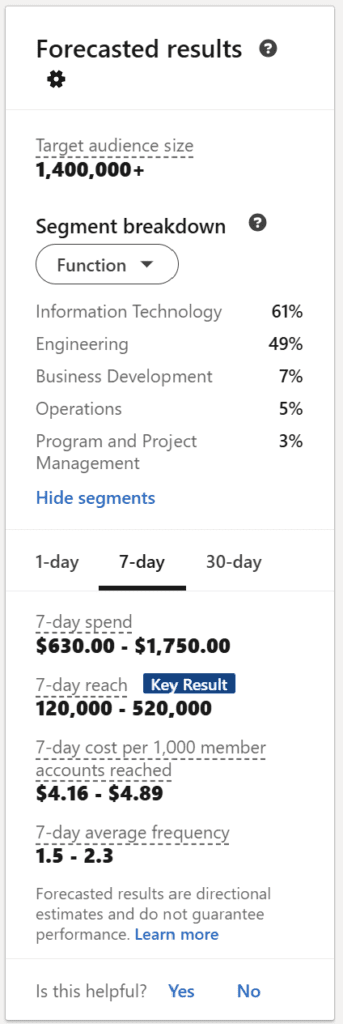
- Target Audience Size
- Shows the size of the audience that matches your targeting settings.
- Based on the targeting criteria selected during campaign setup.
- It helps determine whether your audience is too broad or too narrow.
- Segment breakdown
- Provides insights about your target audience using real-time data.
- Shows details like:
- Audience segments
- Interests
- Industries
- Companies where they work
- Use the dropdown menu to view different audience breakdowns.
- Performance Forecasts
- Forecasts are available for 1 day, 7 days and 30 days.
- Bases on the selected time period, Linkedin estimates expected spend, expected reach, expected frequency (how often people may see your ad)
- These estimates are based on your chosn campaign objective.
Important Reminder: Forecasted results are only estimates. The actual campaign performance may differ. It is necessary to regularly monitor campaign performance after launch.
Save the Campaign
After reviewing the forecast, save the campaign and complete the campaign creation process. Once the campaign is saved, you cannot change the campaign objective and the ad format. You would need to create a new campaign if you want to modify either of these settings.
Create Ads : Overview
Campaign Creation Process is of 4 steps. Choose the campaign objective, input the campaign details, create ad and launch the campaign.
Create the ad : After setting up the campaign, An advertiser is ready to create the ad.
Ads are the content your audience sees on Linkedin, Linkedin Audience Network (LAN)
Create ads that are creative, compelling and relevant. This helps capture attention and increase engagement from the target audience.
Anatomy of the Effective Ad
There are 4 things in an effective ad. Media, Copy, Format and Testing.
- For Media, use eye-catching visuals, keep branding consistent, create “scroll-stopping” content that stands out in the Linkedin feed. Strong visuals are suppose to increase engagement.
- Copy: Choose words carefully. Keep messagin relevant, concise and action-oriented. Focus on communicating value clearly.
- Format: Use different ad formats and content types. Variet helps reach different audience preferences. Keep audiences interested. Improve campaign effectiveness.
- Testing: Contiously test different creatives. learn from performance data. Make improvements based on results. Find the best-performing combination of images/videos, copy and formats.
Important Link: Learn best practices to design ads in Linkedin's creative design course.
Create Linkedin Ads: Key Steps
After setting up the Linkedin ad campaign, follow these three steps to create your ad:
Step 1: Create or Select Content
You have 2 options: Create new ad(s) or browse existing content.
- Create new ad(s) : Build a new ad from scratch. Add your own images, videos, copy, headlines, and CTA.
- Browse Existing Content: Reuse existing organic posts or ads. Ad details are automatically populated. Saves time and maintains consitency.
Important: The ad creation process varies depending on the ad format you selected.
Step 2: Enter the Details
- For ad title : use a descriptive ad title. Make it easier to identify and manage ads later on.
- Introductory Text: Write engaging marketing content. You can use Linkedin’s AI-powered copy generation tool for assistance.
- Ad Copy: Keep the content relevant, short and authentic. Also ensure it follows Linkedin’s advertising specifications.
- Headline: If your ad includes a URL then add a matching headline, keep it under 60 characters. Consider using a question, a quote and a conversational tone.
- Call-to-Action (CTA) : Include a clear CTA. Tell users exactly what action to take. Examples like Learn More, Sign Up, Download Now, and Contact Us.
Step 3: Preview the Ad
Before clicking Create, preview the ad. Preview is only available in the desktop version of Linkedin Campaign Manager.
Placement Preview Options
You can preview how the ad appears in different placements:
Linkedin Feed is Desktop feed and mobile feed.
Linkedin Audience Network (LAN) is medium rectangle, mobile interstitial and Native.
This helps ensure your ad looks correct across all the placements and devices.
Important Links : Learn more about the ad formats on Linkedin in Linkedin Ads Guide or in Ad formats on Linkedin course
Launch Your Ad Campaign
Before launching your campaign, you can still edit campaign settings, modify campaign details and remove ads from the campaign if needed.
Review & Launch Checklist
Before clicking on Launch Campaign, review the following properly.
- Ad format and Campaign Objective: Confirm the selected ad format and ensure the campaign objective matches the campaign goal.
- Budget, Audience and Schedule: Verify budget settings, check audience targeting and confirm campaign dates and schedule.
- Placement and conversion tracking: Review ad placements, verify conversion tracking settings, if applicable.
- Ads in the campaign: Check all ads included in the campaign. Ensure creative, copy and links are correct.
- Payment method: Confirm a valid payment method is added.
- Forecasted Results: Review estimated reach, spend, frequency and other projected campaign metrics.
Launch the Campaign: Once everything has been reviewed and approved. Click “Launch Campaign” to start running your ads.
Important : A payment method is required before a campaign can be launched. You can add payment information through campaign manager and business manager.
Campaign Manager: Account settings > Billing > Add a credit card
Business Manager: Ads Billing Center > Set up monthly invoicing (if eligible)
Launch Your Ad Campaign: Next Steps
After launching your campaign, there are 2 important stages: Ad review and Performance monitoring.
- Ad Review Process: Before ads can run, Linkedin reviews the ad creative to make sure it meets Linkedin advertising policies and quality standards.
- New campaigns go live only after the ad creative is approved.
- Edited ads must also go through the review process.
- The review helps maintain a professional and trustworthy experience for Linkedin members.
- Approval typically takes 24 – 48 hours.
Important: If you add a new ad to an existing campaign then the existing campaign continues running normally. Only the new creative enters review and the new ad starts delivering after approval.
2. Monitor Campaign Performance: Once the campaign is Live, track its performance in Campaign Manager.
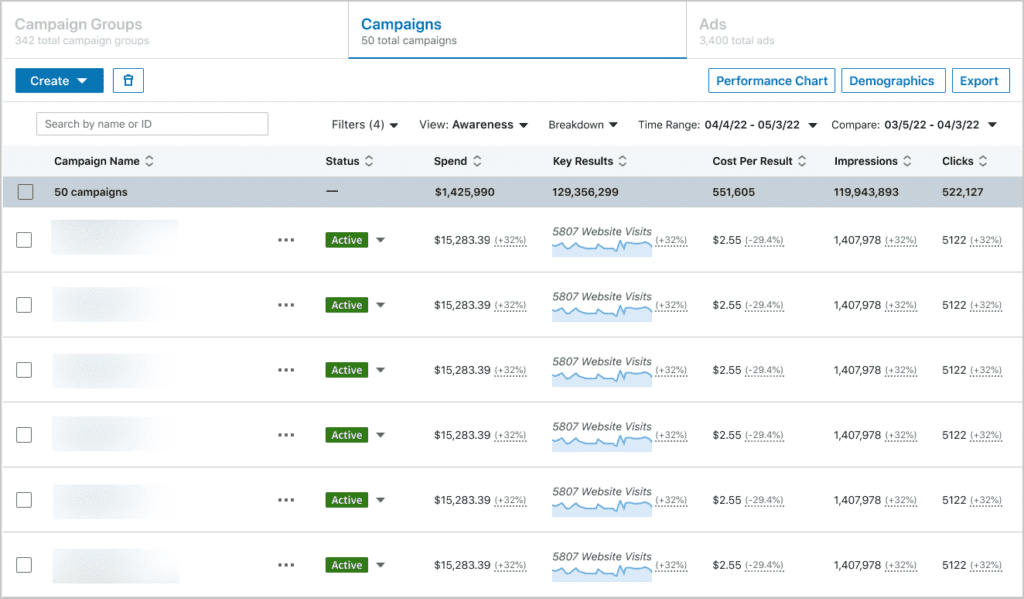
Reach and Frequency: Reach is number of unique people who saw the ad and frequency is average number of times each person saw the ad.
Impressions are total number of times the ad was displayed.
Clicks are the number of clicks received on the ad.
Engagement metrics are the interactions such as likes, comments, shares and other engagement actions.
Conversions & Leads are where we track desired actions like form submissions, sign-ups, purchases and leads generated. These are available with conversion tracking.
Related:
Learn how to evaluate campaign’s performance in Reporting and Analytics for Linkedin Ads course.
What is Linkedin Accelerate?
Creating a Linkedin ad campaign from scratch involves a certain amount of effort and decision making.
With Accelerate, Campaign Manager offers the power of Artificial Intelligence (AI) to reduce some of that workload to mere seconds.
Accelerate is a automated AI-driven campaign creation and optimization tool that maximizes return on ad spend (ROAS) across the funnel.
All you need to get started is the landing page URL that is built well to advertise.
Maximize Results and Launch Faster with Accelerate Campaigns
Before launching a Linkedin campaign, a marketer usually spends a significiant amount of time figuring out below 4 things.
- Which audience is most likely to respond?
- Which creative will perform best?
- Which bidding strategy will deliver the desired results?
- How to optimize the campaign for better performance?
This traditional process can be time-consuming and may require hours of setup, testing and ofcourse, adjustments.
AI-powered Linkedin Accelerate campaigns are designed to simplify this process by using automation and machine learning (ML) to help improve campaign performance and reduce the time needed to launch and optimize campaigns.
Performance
Accelerate campaigns use AI-powered targeting, creative selection, and bidding to help maximize campaign results.
Instead of relying entirely on manual decisions, the sysyem continuously works to identify combinations that can drive better outcomes.
Efficiency
Accelerate campaigns save time by automating campaign setup and optimization.
The automation is tailored to the specific business goals and needs, reducing the manual effort typically required to manage campaigns.
Dynamic Targeting
Accelerate campaigns dynamically optimze audience targeting to connect with buyers who are most likely to convert.
Rather than targeting only predefined audiences, the system continuously adjusts targeting based on performance data to find higher-performing audience segments.
In short, Accelerate campaigns use AI to automatically identify and optiimze the best combination of targeting, Creative, Bidding and Placement.
By continuously optimizing these 3 elements together, Accelerate campaigns aim to improve return on investment (ROI), maximize campaign results, and help businesses bring campaigns to market more quickly than the traditional campaign setup process i.e. the Classic mode.
The Power of AI in Accelerate Campaigns
Accelerate campaigns use AI to support an advertiser throughout the campaign creation process.
AI helps with 3 major activities i.e. generating product descriptions, identifying and targeting the right audience and creating ad creatives.
Let’s look at each activity.
Generating a Product’s Description
- Start by providing a URL.
- AI analyzes the content on that page and automatically extracts information such as what the product is, the product’s key features, benefits of the product, ideal customer profile (ICP) or target customer.
- Use a URL that points directly to the specific product page, not the company’s homepage.
- The quality of the campaign depends heavily on the quality of the product description generated by AI.
- Ensure the page content is detailed, accurate and clearly explains the product.
- Before creating the Linkedin campaign, carefully review the AI-generated description and add any missing details, especially information about your target audience.
Important: The URL is used only to help build the campaign. It does not have to be final destination URL where users will land after clicking the ad.
2. Targeting the audience
Campaign Manager uses AI to find and reach the audience most likely to help achieve your campaign goals.
To determine the best audience, AI analyzes multiple signals like the product description, the product category, campaign engagement data, data sources provided like contact lists, lead lists and conversion data.
The AI continuously uses these signals to identify audiences that are more likely to deliver strong results.
Key tips for targeting the audience
- Audience targeting begins with the product description, so provide a high-quality product URL with clear details and value propositions.
- Upoload data sources that closely match your campaign objective.
- Example: If the goal is to generate demo bookings, provide a list of previous leads who successfully booked demos.
- After the campaign launches, review campaign demographics to understand which audience segments the campaign is actually reaching.
3. Creating the Ads
The ad copy is automatically generated using the product description that AI created during the first step.
For visuals, AI selects and ranks images from your asset library and shutterstock.
The ranking process works differently for each source.
Asset library images are ranked based on their historical performance.
Shutterstock images are selected and ranked based on how well they match the product description.
This helps AI choose images that are most relevant to the product and most likely to perform well.
Key tip is to use draft with AI to generate and test as many ad variations as you need before launching the campaign.
Accelerate Campaign Best Practices
To get the best results from Accelerate campaigns, follow these recommended practices.
- Allow the optimization period: After launching an Accelerate campaign, it enters an optimization period that typically lasts for 10 – 14 days.
- During this time, AI continously analyzes performance and automatically refinds audience targeting, bid strategy, ad placements and creative delivery.
- The goal is to identify the combinations that generate the best results.
- Important: You can still edit the audience, bid strategy, or ads while the campaign is running. However, making these changes restarts the optimization period, which may temporarily affect campaign performance as the AI begins learning again.
- Use data sources strategically: The impact of adding data sources depends on the campaign objective.
- For lead gen. campaigns: Adding data sources is generally beneficial because it gives AI more information about the type of users you want to reach.
- For website visit campaigns: Adding data sources may sometimes limit results because it can narrow the audience pool and reduce the AI’s ability to explore broader opportunities.
Always evaluate whether a data source supports the campaign goal before using it.
3 Key tips to use Data sources.
Match the data source to the campaign objective: The data should relect the action you want people to take. Example: If the goal is to generate demo bookings, upload a list of people who previously booked demos.
Use larger data sets whenever possible
Larger data sources provide more information for AI to learn from and improve targeting.
- Minimum recommended size is 300 records.
- Larger audiences generally provide stronger learning signals.
Leverage existing customer data like customer email lists, past lead lists, website visitor lists, long-page visitor lists and conversion lists.
These audiences help AI identify people with similar characteristics and behaviors.
3. Run A/B Tests: A/B testing is an effective way to measure the additional value that Accelerate campaigns can provide to traditional campaigns.
When creating a Classic campaign, Campaign Manager may offer an option to run an A/B test against an Accelerate campaign.
This option is available when specific budget and bidding requirements are met.
By comparing both campaign types under similar conditions, you can evaluate the incremental performance benefits delivered by Accelerate.
4. Use the AI Assistant
The built-in AI Assistant can support you throughout campaign management.
This assistant can do 4 major things.
- Answer common questions about Accelerate campaigns.
- Recommend improvements to campaign performance.
- Provide guidance on campaign settings and optimization.
- Connect you with a live support agent when needed.
This makes it easier to troubleshoot issues, learn best practices, and optimize campaigns more effectively.
Accelerate vs. Classic: When to Use Each
Use Accelerate if:
- You want guidance from an AI Marketing assistant during campaign creation.
- You want AI-generated recommendations to help customize your campaign.
- You want your audience targeting to automatically adjust and find professionals most likely to convert.
- Your preferred ad format is available in Accelerate and marked with the blue AI sparkle icon e.g. single image ads.
- Your campaign objective is supported in Accelerate and marked with the blue AI sparkle icon eg. website visits and lead generation.
- You want to use Maximum Delivery bidding with an optional cost cap.
- You are comfortable running ads on the Linkedin Audience Network (LAN).
- You do not need Dynamic Group Budget.
- You pay using Credit Card or Online Invoicing.
- You are advertising in English.
- You are comfortable with AI handling much of the optimization process.
Use Classic if:
- You don’t need AI guidance or creative assistance.
- You need to target specific accounts or contacts.
- You want to use Matched Audiences.
- Your desired ad format is not yet available in Accelerate.
- Your desired campaign objective is not yet available in Accelerate.
- You need manual bidding and greater control over bids.
- You do not want your ads to run on the Linkedin Audience Network (LAN)
- You want to use Dynamic Group Budget.
- Your campaigns are billed through an Insertion Order (IO).
- You need to advertise in a non-English language.
- You prefer more manual control over campaign setup and optimization.
In short, Accelerate means less manual effort and classic means more manual control.
Let’s Check Our Knowledge
- A Compelling ad may include all of the following except:
- Quote
- Lengthy ad copy
- Call to Action (CPA)
- Question
- Which of the following are benefits to creating a campaign using Accelerate mode?
- AI Powered performance optimization.
- AI generated product description.
- Dynamic targeting.
- Automated setup at the speed of AI.
- All of the above.
- Which option should you enable to reach targeted professionals across multiple touchpoints beyond the Linkedin platform?
- Audience Expansion.
- Linkedin Audience Network.
- Which of the following attributes can be used to create your target audience in Campaign Manager?
- Third party
- Geographic region
- Interest and traits
- Job experience
- Company
- Feedback: Tailor audience by adjusting available attributes such as geographic region, company, interests and traits and job experience.
- All campaign objectives and ad formats are available in which model?
- Accelerate
- Classic
- Neither Classic nor Accelerate
- Both Classic and Accelerate
- Feedback: All campaign objectives and ad formats are available in Classic mode. Available options for Accelerate may vary as Campaign manager evolves.
- Which bidding option uses Machine Learning to set bids automatically with the goal of using your budget most efficiently?
- Manual bidding
- Maximum delivery
- Cost cap
- In which mode(s) can you use AI to help generate ad copy for single image ads?
- Neither Classic nor Accelerate
- Both Classic and Accelerate
- Accelerate
- Classic
- Feedback: Both Classic and Accelerate modes allow you to take advantage of the power of AI to generate ad copy.
- ‘Website visits’ falls under which ad campaign objective category?
- Awareness
- Conversions
- None of the above
- Consideration
- Which of the following is required to launch an ad campaign?
- Selecting an ad format
- Choosing an objective
- Choosing the target audience
- Adding payment details
- All of the above